
Did you know that May 5, 2022, is World Password Day?1 Created by cybersecurity professionals in 2013 and designated as the first Thursday every May, World Password Day is meant to foster good password habits that help keep our online lives secure. It might seem strange to have a day set aside to honor something almost no one wants to deal with—like having a holiday for filing your income taxes (actually, that might be a good idea). But in today’s world of online work, school, shopping, healthcare, and almost everything else, keeping our accounts secure is more important than ever. Passwords are not only hard to remember and keep track of, but they’re also one of the most common entry points for attackers. In fact, there are 921 password attacks every second—nearly doubling in frequency over the past 12 months.2
But what if you didn’t have to deal with passwords at all? Last fall, we announced that anyone can completely remove the password from their Microsoft account. If you’re like me and happy to ditch passwords completely, read on to learn how Microsoft is making it possible to start enjoying a passwordless life today. Still, we know not everyone is ready to say goodbye to passwords, and it’s not possible for all your online accounts. We’ll also go over some easy ways to improve your password hygiene, as well as share some exciting news from our collaboration with the FIDO Alliance about a new way to sign in without a password.
Free yourself with passwordless sign-in
Yes, you can now enjoy secure access to your Microsoft account without a password. By using the Microsoft Authenticator app, Windows Hello, a security key, or a verification code sent to your phone or email, you can go passwordless with any of your Microsoft apps and services. Just follow these five steps:
- Download and install Microsoft Authenticator (linked to your personal Microsoft account).
- Sign in to your Microsoft account.
- Choose Security. Under Advanced security options, you’ll see Passwordless account in the section titled Additional security.
- Select Turn on.
- Approve the notification from Authenticator.
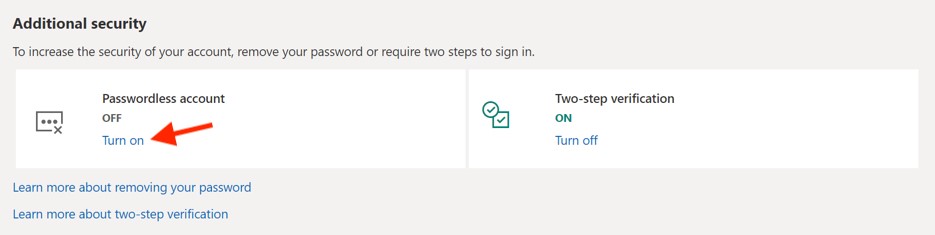
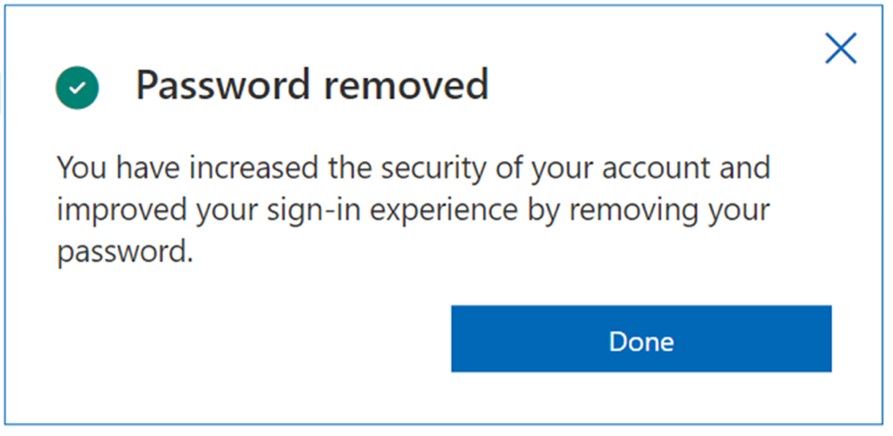
Once you approve the notification, you’ll no longer need a password to access your Microsoft accounts. If you decide you prefer using a password, you can always go back and turn off the passwordless feature. Here at Microsoft, nearly 100 percent of our employees use passwordless options to log into their corporate accounts.
Strengthen security with multifactor authentication
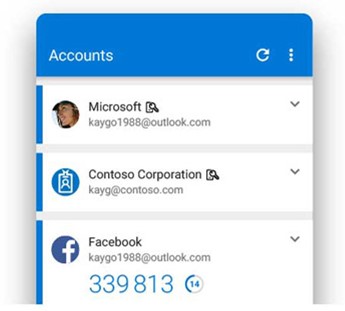
One simple step we can all take to protect our accounts today is adding multifactor authentication, which blocks 99.9 percent of account compromise attacks. The Microsoft Authenticator app is free and provides multiple options for authentication, including time-based one-time passcodes (TOTP), push notifications, and passwordless sign-in—all of which work for any site that supports multifactor authentication. Authenticator is available for Android and iOS and gives you the option to turn two-step verification on or off. For your Microsoft Account, multifactor authentication is usually only needed the first time you sign in or after changing your password. Once your device is recognized, you’ll just need your primary sign-in.
Make sure your password isn’t the weak link
Rather than keeping attackers out, weak passwords often provide a way in. Using and reusing simple passwords across different accounts might make our online life easier, but it also leaves the door open. Attackers regularly scroll social media accounts looking for birthdates, vacation spots, pet names and other personal information they know people use to create easy-to-remember passwords. A recent study found that 68 percent of people use the same password for different accounts.3 For example, once a password and email combination has been compromised, it’s often sold on the dark web for use in additional attacks. As my friend Bret Arsenault, our Chief Information Security Officer (CISO) here at Microsoft, likes to say, “Hackers don’t break in, they log in.”
Some basics to remember—make sure your password is:
- At least 12 characters long.
- A combination of uppercase and lowercase letters, numbers, and symbols.
- Not a word that can be found in a dictionary, or the name of a person, product, or organization.
- Completely different from your previous passwords.
- Changed immediately if you suspect it may have been compromised.
Tip: Consider using a password manager. Microsoft Edge and Microsoft Authenticator can create (and remember) strong passwords using Password Generator, and then automatically fill them in when accessing your accounts. Also, keep these other tips in mind:
- Only share personal information in real-time—in person or by phone. (Be careful on social media.)
- Be skeptical of messages with links, especially those asking for personal information.
- Be on guard against messages with attached files, even from people or organizations you trust.
- Enable the lock feature on all your mobile devices (fingerprint, PIN, or facial recognition).
- Ensure all the apps on your device are legitimate (only from your device’s official app store).
- Keep your browser updated, browse in incognito mode, and enable Pop-Up Blocker.
- Use Windows 11 and turn on Tamper Protection to protect your security settings.
Tip: When answering security questions, provide an unrelated answer. For example, Q: “Where were you born?” A: “Green.” This helps throw off attackers who might use information skimmed from your social media accounts to hack your passwords. (Just be sure the unrelated answers are something you’ll remember.)
Passwordless authentication is becoming commonplace
As part of a historic collaboration, the FIDO Alliance, Microsoft, Apple, and Google have announced plans to expand support for a common passwordless sign-in standard. Commonly referred to as passkeys, these multi-device FIDO credentials offer users a platform-native way to safely and quickly sign in to any of their devices without a password. Virtually unable to be phished and available across all your devices, a passkey lets you sign in simply by authenticating with your face, fingerprint, or device PIN.
In addition to a consistent user experience and enhanced security, these new credentials offer two other compelling benefits:
- Users can automatically access their passkeys on many of their devices without having to re-enroll for each account. Simply authenticate with your platform on your new device and your passkeys will be there ready to use—protecting you against device loss and simplifying device upgrade scenarios.
- With passkeys on your mobile device, you’re able to sign in to an app or service on nearly any device, regardless of the platform or browser the device is running. For example, users can sign in on a Google Chrome browser that’s running on Microsoft Windows, using a passkey on an Apple device.
These new capabilities are expected to become available across Microsoft, Apple, and Google platforms starting in the next year. This type of Web Authentication (WebAuthn) credential represents a new era of authentication, and we’re thrilled to join the FIDO Alliance and others in the industry in supporting a common standard for a safe, consistent authentication experience. Learn more about this open-standards collaboration and exciting passwordless capabilities coming for Microsoft Azure Active Directory in a blog post from Alex Simons, Vice President, Identity Program Management.
Helping you stay secure year-round
Read more about Microsoft’s journey to provide passwordless authentication in a blog post by Joy Chik, Corporate Vice President of Identity. You can also read the complete guide to setting up your passwordless account with Microsoft, including FAQs and download links. And be sure to visit Security Insider for interviews with cybersecurity thought leaders, news on the latest cyberthreats, and lots more.
To learn more about Microsoft Security solutions, visit our website. Bookmark the Security blog to keep up with our expert coverage on security matters. Also, follow us at @MSFTSecurity for the latest news and updates on cybersecurity.
1World Password Day, National Day Calendar.
2According to Microsoft Azure Active Directory (Azure AD) authentication log data. 2022.
3America’s Password Habits 2021, Security.org. October 1, 2021.