 Discover Windows
Discover Windows
Discover Windows

April 09, 2026
Share this page


It’s second nature by now: copy once, paste anywhere.
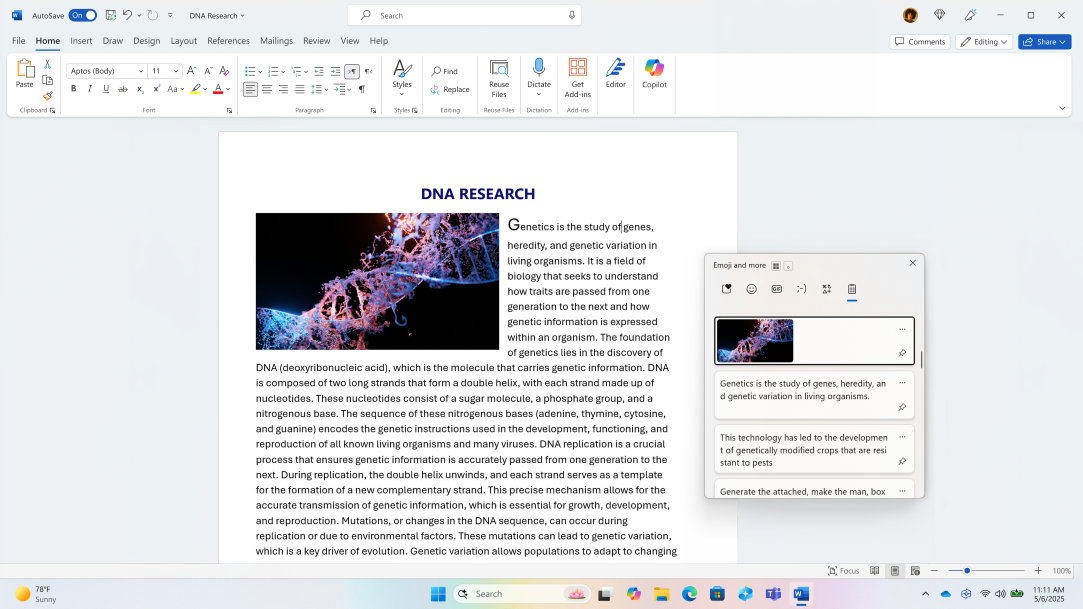
Clipboard history on Windows 11 takes that familiar action further. Instead of holding just one copied item at a time, you can keep multiple snippets—like text, links, even images—ready to use. With a simple shortcut, you can pull up your clipboard history and paste exactly what you need, where you need it.
This guide shows how Windows 11 clipboard history works, how to use the clipboard shortcut that opens it, and the best keyboard shortcuts to help you copy more, paste faster, and stay focused as you work.
What Windows 11 clipboard history is (and why you’ll use it daily)
In Windows 11, clipboard history lets you store and access multiple copied or cut items—such as text and images (up to 4 MB). Instead of holding just one item at a time, your clipboard keeps a running list you can open, browse, and paste from. You can even sync it across devices.
Clipboard history is especially useful when a task requires several copy actions before pasting. You can copy your address, an email template snippet, and a meeting link, then choose the exact item you need when you’re ready to paste.
The feature also streamlines content gathering. You can copy multiple lines from a document or webpage, continue working elsewhere, and later select any previously copied item to paste into an email or slide deck—without reopening the original source.
The clipboard shortcuts everyone should know
Windows 11 keeps standard copy and paste shortcuts separate from the clipboard history shortcut—but they work together.
Turn on and open clipboard history
Press Windows logo key + V, then select Turn on.
To clear all saved items, press Windows logo key + V and select Clear all.
Standard copy and paste shortcuts
Clipboard history builds on the shortcuts you already use:
Sync clipboard history across devices
You can also sync copied text across supported devices1. Clipboard sync is tied to your Microsoft account or work account, so sign in with the same account on each device:
Use clipboard history like a pro
Think beyond one-off copy and paste. Clipboard history can support repeat tasks, structured writing, and multi-step workflows.
Pin items you reuse all the time
If you regularly paste the same content—like your address, boilerplate replies, recurring links, or standard responses—pin those items in clipboard history.
Pinning keeps a copied item saved in your clipboard list even after restarting your PC. Pinned items remain available until you remove them, which makes them ideal for repeat tasks and frequently used snippets.
Paste without breaking your flow
Use Windows logo key + V while writing to open clipboard history without leaving your current app.
You can insert multiple saved items in a single session—no switching back to source documents to copy again. Keep your “copy queue” ready while working in email, Microsoft Teams, documents, or your browser, and paste exactly what you need as you go.
Clipboard history works with more than text
Use clipboard history for office tasks, like forms, spreadsheets, and slides. Use it for communication, like Teams messages and emails. And clipboard history for research, letting you collect content from multiple sources without switching apps.
Make clipboard history part of your daily workflow
Clipboard history can speed up almost any task. Follow a workflow to make clipboard history a seamless part of your day, helping you stay more organized and efficient. For example:
Privacy and cleanup: how to clear clipboard history
Clipboard history makes it easy to store and reuse content, but sometimes you’ll want to clear old items or manage what’s synced across devices. Knowing how to remove history and adopt simple safety habits keeps your data private and your workflow clean.
Clear from settings
If you need to remove items from your clipboard, navigate to Settings > System > Clipboard > Clear clipboard data.
Clearing the clipboard deletes all unpinned items. Pinned items remain safe until you remove them manually.
Smart safety habits
Even with clipboard management, it’s important to think about privacy. Avoid leaving sensitive information in clipboard history on shared devices.
Also consider your sync settings. If your organization has IT policies or you want to limit cross-device access, you can turn off clipboard sync. This keeps your content private and under your control.
Troubleshooting clipboard history
Clipboard history works automatically, but sometimes items don’t appear, or Windows logo key + V is unresponsive. If that happens, check the following.
Confirm clipboard history is enabled
Press Windows logo key + V. If nothing happens, make sure clipboard history is turned on by going to Settings > System > Clipboard > Clipboard history > On.
Restart the source app or copy plain text
Some apps don’t register copied content immediately. Close and reopen the app, then try copying plain text to see if it appears in clipboard history.
Check work or IT policies
On managed work PCs, certain IT policies may limit clipboard features. Contact your IT team if clipboard history isn’t available or syncing across devices.
One small change can mean less rework
Windows 11 clipboard history stores what you copy or cut—like text, links, and images—so you can paste any item exactly when you need it. You can pin content you use often and access multiple items without switching apps. Making clipboard history part of your workflow helps reduce repetitive steps and can help improve productivity.


