

What’s your work style? Here at Microsoft Digital, the company’s IT organization, we’ve identified four major “work identities,” or ways of working.
Or, as we sometimes like to call them: Our fantastic four!
- Analyzers
- Collaborators
- Innovators
- Planners
Everyone has a work style. Find the one that matches yours, and we’ll show you the Microsoft 365 apps and Copilot features that best complement it—helping you get more done every day.
The challenge of modern work: Focus
Let’s be real: Work today is a lot.
We’re switching between apps, juggling priorities, sitting through “quick syncs” that aren’t, and trying to protect a shred of focus time before the next <bloop> from Teams throws you off again.
Focus feels like a fantasy.
The numbers don’t lie, and they do explain a lot. Data from the most recent Microsoft Work Trend Index report shows that:
- Most of us get interrupted an average of 275 times a day.
- Nearly 2 out of 3 people say we don’t have the time or energy for meaningful work.
- We get an average of 58 off-hours messages a week.
- 60% of meetings are totally ad-hoc.
And here’s the kicker: The same study showed a whopping 68% of us say we’d gladly hand off as much work as possible to AI. And that’s where Microsoft 365 Copilot comes in!
Finding and embracing your work style
Here’s the good news: You’ve got a distinct work style: instincts, strengths, and quirks that guide how you get things done.
What if you’re not sure what work style best describes you exactly? Well, that’s where Copilot comes in handy! Here’s a sample prompt that you can copy into Copilot and find out where you land on the work style continuum:
“What’s my work style? Let’s find out. Analyze my full work patterns across all channels—emails, Teams chats, documents, and meetings—and match me to one of our fantastic four work styles that follow. Choose the dominant work style that shows up most clearly in my patterns, tone, and behavior. The four work styles are:
• Analyzer: Data-driven, focused on insights and logic, makes decisions based on facts.
• Planner: Structured, detail-oriented, thrives on process and minimizing chaos.
• Collaborator: Empathetic, people-focused, team-oriented, facilitates communication.
• Innovator: Visionary, idea-oriented, brings bold energy to innovation and content creation.”
When you know your work style, you can use Copilot in the way that makes the most sense for you. That’s true no matter whether your current task involves planning ahead, jumping into team brainstorming, making sense of the data, or coming up with bold ideas.
(Note: It may be helpful to think of these categories as describing your primary work style. We all have many talents and different characteristics, and you might find yourself occasionally adopting aspects of other work styles, depending on the context and the type of work you are doing.)
The Analyzer
Uses Copilot to turn data, research, and complex documents into clear insights, trends, and visual stories that support confident, data-driven decisions.
The Collaborator
Uses Copilot to keep people aligned by summarizing meetings and messages, surfacing action items, and converting team input into shared, polished outputs.
The Innovator
Uses Copilot to spark, shape, and ship ideas faster—moving from blank page to compelling stories, decks, and concepts with minimal friction.
The Planner
Uses Copilot to bring structure to work by organizing information, automating follow-ups, creating plans and templates, and keeping tasks and goals on track.
How Copilot can help
Check out this list of the four major types of work styles, along with the ways in which you can use Copilot to help excel in your role and become a work superhero.
1. The Analyzer
Detail lover. Data decoder. Insight seeker.
Motto: “In data we trust.”
What you and Copilot can do:
Turn spreadsheets into stories
Use Copilot in Excel to spot trends, run what-if analysis, or summarize findings in plain language.
Make reports easier to digest
Summarize long documents and compare versions with Copilot in Word.
Find the needle in the haystack
Use Copilot Chat to search across documents, pull relevant data, and answer complex questions fast.
Organize your thinking
Capture research and workflows using OneNote or Loop, then refine them with Copilot.
Microsoft 365 app highlights
- Excel: Ask Copilot to analyze trends, flag outliers, or write formulas. Prompt: “Analyze this spreadsheet and highlight trends.”
- Word: Summarize research docs, compare documents, or outline decisions. Prompt: “Summarize this 10-page document into 5 key takeaways.”
- PowerPoint: Turn analysis into visual storytelling. Prompt: “Turn this data into a visual-heavy presentation for leadership.”
- Outlook: Let Copilot summarize long threads or extract action items. Prompt: “Pull all emails from (client/project) and summarize findings.”
- Teams: Enable Facilitator in meetings to get notes, action items, and a chat summary without asking. Skip to the key insights in a recap. Prompt: “Summarize key takeaways from the data discussion in this thread.”
- Viva Engage: Ask Copilot to tell you what’s trending across the company.
Copilot features you’ll love
- General search: Get additional context when searching for people, files, and resources.
- Search your Outlook folders: Ask Copilot to check specific email folders to surface the data hiding there.
- Voice chat: Ask follow-ups out loud, because faster answers = faster decisions; just select the microphone in the composer. Remember that you can also have Copilot read the answer aloud by selecting the speaker icon at the end of the response.
- Notebooks: Select the Notebook tab and add your resources there to create your own searchable insight vault.
- Memory: Context = clarity. Copilot can track what matters, so your questions hit harder, faster, and with less repetition. Select the memory feature in your Copilot settings.
2. The Collaborator
Connector. Team player. Chaos coordinator.
Motto: “Teamwork makes the dream work.”
What you and Copilot can do:
Keep everyone aligned
Use Copilot in Teams and turn on Facilitator to recap meetings, surface action items, and summarize chats.
Communicate with less confusion
Let Copilot in Outlook summarize long threads, suggest replies, and draft messages with clarity.
Bring ideas together, fast
Co-create content in Word, Loop, or Whiteboard, then refine it with Copilot.
Stay in sync
Use Copilot Chat to reference docs, follow up with teammates, and get updates without pinging people.
Microsoft 365 app highlights
- Teams: Here are some features you can take advantage of:
- Enable Facilitator in meetings to have it compile all the details automatically. Take it further by selecting the chat in Teams and tapping the Copilot icon at top right. Then prompt Copilot: “Summarize this conversation and suggest a next step.”
- No time to listen to a meeting recording? Check out the Audio Recap feature to get an engaging audio summary in the style of your choice.
- Outlook: Prioritize the topics and people you want. Select the Copilot icon from the ribbon and choose Prioritize in the dropdown list.
- PowerPoint: Copilot helps turn everyone’s updates into one polished deck. Prompt: “Turn these brainstorm notes into a presentation for team review.”
- Word: Reference a meeting transcript from Teams and hand it off to Copilot to start the draft. Prompt: “Summarize these meeting notes into a proposal draft.”
- Excel: Do you use shared workbooks? Copilot can help interpret them and suggest next steps. Prompt: “Highlight changes from the latest version and comment on flagged data.”
- Whiteboard: After your team brainstorming session, use Copilot to summarize the info. Export this to Loop so the team is all on the same page—literally.
- Viva Engage: Ask Copilot to give you the latest updates from communities that you follow.
Copilot features you’ll love
- Referencing people in Copilot Chat: Get the skinny on teammates without asking them IRL. Just type “/[name]” for all the latest updates.
- Schedule with Copilot in Outlook: Use the Schedule with Copilot button in the ribbon to find a meeting time and schedule your meeting with ease. Or, you can schedule a meeting right in Copilot Chat!
- Voice chat: Talk it out instead of typing it out. Just select the microphone or the vertical lines in the composer.
- Search: Search for people or track down that shared doc or Teams thread from last week’s brainstorm.
- Notebooks: Document work and decisions and add a Loop to keep the collaboration alive. Select the Notebook tab in Copilot Chat to get started.
- Pages: Create shareable pages for generating, organizing, and refining content in real time. Select the Edit in Pages icon at the bottom of your prompt responses.
- Memory and personalization: Names, roles, team quirks—it’s all here. Copilot can remember who prefers slides over spreadsheets. Find the Memory feature in your Copilot settings.
3. The Innovator
Idea generator. Vision-caster. Creative problem-solver.
Motto: “The blank page doesn’t scare me.”
What you and Copilot can do:
Start strong, finish fast
Use Copilot in Word or Loop to draft from scratch, reframe your messaging, or explore new ideas.
Pitch with polish
Turn big ideas into slide decks using Copilot in PowerPoint—no design skills required.
Brainstorm on demand
Use Copilot in Whiteboard to summarize your ideas and pop over to Copilot Chat to expand, explore angles, and generate more options.
Flow between ideas and output
Use Windows + C to access all your go-to tools via the Create tab in Copilot Chat.
Microsoft 365 app highlights
- PowerPoint: Start from scratch or import a Word doc and let Copilot build out slides with visual flair. In PowerPoint, select New, then choose Create with Copilot to get going.
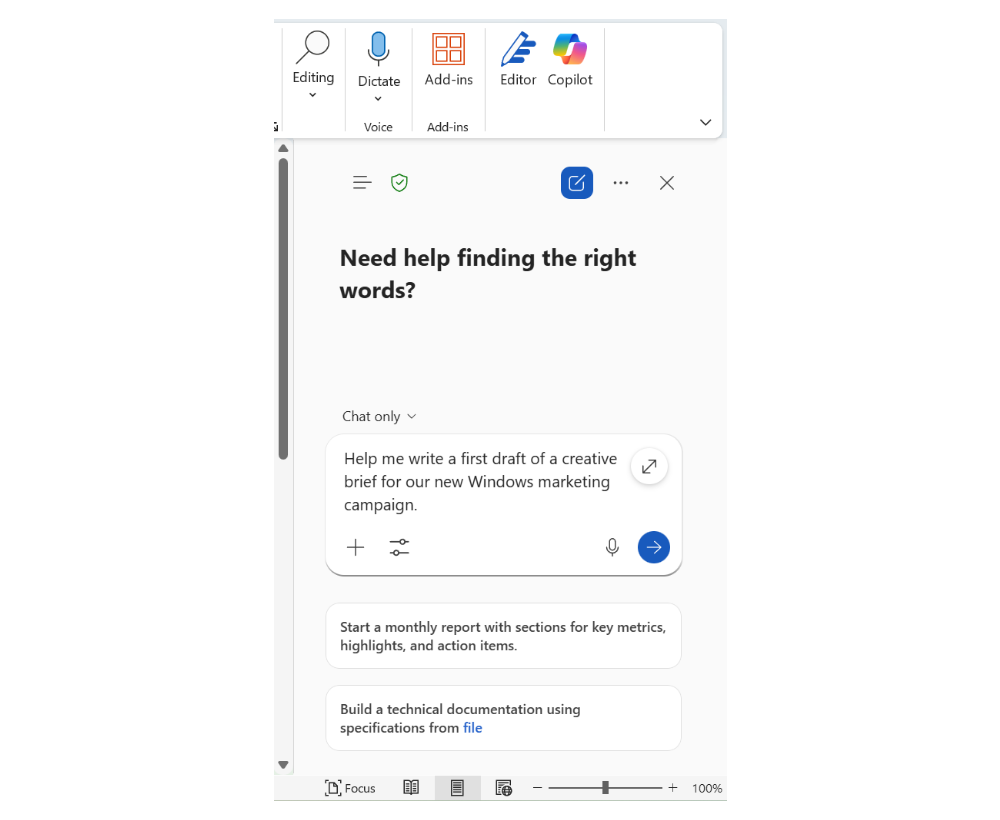
- Word: Draft an idea, rewrite it in a new tone, or punch up your intro. Prompt: “Write a first draft of a creative brief for this new idea.”
- Teams: Share a concept from the meeting notes and ask Copilot to summarize or expand on it. Prompt: “Summarize this brainstorm session and turn into a list of next-step ideas.”
- Excel: Create visual dashboards or ask Copilot to simplify data for storytelling. Prompt: “What’s the story behind this data?”
- Outlook: Reframe your emails in a different tone. Go from “per my last email” to “let’s sync!” When composing a message, select the Copilot icon on the left. Choose from different tones, get coaching on your writing style, and more.
- SharePoint: Build beautiful pages with layout suggestions and smart content generation. In SharePoint, create a new page and choose Create with Copilot to start designing.
- Viva Engage: Use Copilot in the Viva Engage composer to turn your ideas into a polished Engage post. (Note: Access may depend on which Copilot license you have.)
Copilot features you’ll love
- Create: Turn blank screens into bold starts. With Copilot, custom images, videos, and documents are just a few clicks away.
- Voice chat: Your best ideas don’t wait for a keyboard. Just select the microphone or vertical lines in the composer to get started dictating your thoughts.
- Search: Instantly find the details about that idea you had last week
- Scheduled prompts: Nudge your muse with ideas exactly when you need them. When you create a prompt, just hover over it and choose the clock icon to schedule a time for it to pop up for you in the future.
- Referencing people in chat: Loop others into your creative drafts and builds.
- Memory: That random spark of genius from three meetings ago? Copilot can recall it for you, because it remembers everything. Find the memory feature in your Copilot settings.
4. The Planner
Structure-first. Deadline-driven. The master of the plan behind the plan.
Motto: “I’ve never met a checklist I didn’t love.”
What you and Copilot can do:
Turn chaos into clarity
Ask Copilot Chat to summarize email threads, meetings, or long docs so you can prioritize faster.
Build a better plan (in seconds)
Use Copilot in Word or Loop to draft SOPs, project timelines, or templates from scratch.
Stay on top of it all
Use Copilot in Outlook to organize your inbox, schedule meetings, and draft fast replies.
Make updates a breeze
Use Copilot in PowerPoint to auto-build status decks from Word or Excel docs.
Microsoft 365 app highlights
- Outlook: Summarize long threads, pull out key actions, and draft follow-up plans. Just select the Summarize button at the top of an email. Use Prepare with Copilot in the new Outlook to set yourself up for success.
- Planner: Turn a goal into a structured task list with due dates and owners.
- Word: Draft templates for recurring processes, reports, or meeting agendas.
- Excel: Analyze project timelines or compare team capacity over time.
- Teams: Keep track of action items in chats and meetings, and ask Copilot turns them into tasks. Enable Facilitator in Teams to draft agendas for you.
- SharePoint: Build team hubs with agents that surface what matters most. In SharePoint, create a new page and select Create with Copilot to start designing.
Copilot features you’ll love
- Pages: We love it when a plan comes together. Create shareable pages for your projects. Select the Edit in Pages icon at the bottom of your prompt responses.
- Voice chat: Rattle off your to-do list and watch Copilot keep up.
- Scheduled prompts: Trigger reminders and next steps right when you need them. When you send a prompt, hover over it to select the clock icon to schedule.
- Search: Find files, plans, or past decisions without opening 10 tabs.
- Referencing people in chat: Assign tasks or gather input from others by typing the forward slash (/) and entering the name.
- Notebooks: Store recurring process docs, SOPs, or onboarding checklists. Select the Notebook tab in Copilot Chat and go.
- Create: Create forms, documents, and more to put your plans into action.
- Memory: Copilot can keep track of your project goals, recurring tasks, and who owns what.
Your work style, transformed
Whether you’re a Planner trying to make a schedule out of spaghetti, a Collaborator trying to decode feedback in a 17-reply email thread, an Analyzer wading through data, or an Innovator with five big ideas and zero time to pitch them, you and Copilot have got this. It helps you turn the mess into momentum.
And be sure to share what you’ve learned with your coworkers. The more your team can harness the power of Copilot in their work, the more you can all achieve together.

Key takeaways
Here are some important insights as you consider how understanding your work style can help you and your team get the most out of tools like Microsoft 365 Copilot:
- Everyone has a work style—and knowing yours is a force multiplier. Whether you’re an Analyzer, Collaborator, Innovator, or Planner, understanding how you naturally work helps you get more value from Copilot.
- Copilot adapts to you, not the other way around. Whether you’re digging into data, aligning a team, generating ideas, or building structured plans, Copilot meets you where you are and amplifies your strengths.
- Less busywork, more impact. Copilot helps offload repetitive tasks like summarizing emails, drafting documents, recapping meetings, and organizing notes—freeing time for higher‑value work.
- Better insights, faster decisions. From turning spreadsheets into stories to surfacing action items and trends, Copilot converts information overload into clear next steps.
- Workflows improve across the entire Microsoft 365 ecosystem. Deep integration with apps like Teams, Outlook, Word, Excel, PowerPoint, Loop, and Viva means Copilot supports end-to-end work—not just isolated tasks.
- Teams win when individuals work smarter. When everyone uses Copilot in a way that fits their work style, collaboration improves, alignment gets easier, and momentum builds.


Related links
- Learn how to pick the right Copilot for the job.
- Read about a day in the life of a Microsoft employee using Copilot.
- Jump into action with the Copilot prompt gallery (sign-in required).
- Explore how Copilot and agents are combining to fuel the Frontier Firm.
- Discover how we’re powering AI value at Microsoft with Copilot extensibility.
